MetroList for PC: How to Install MetroList APK on Windows
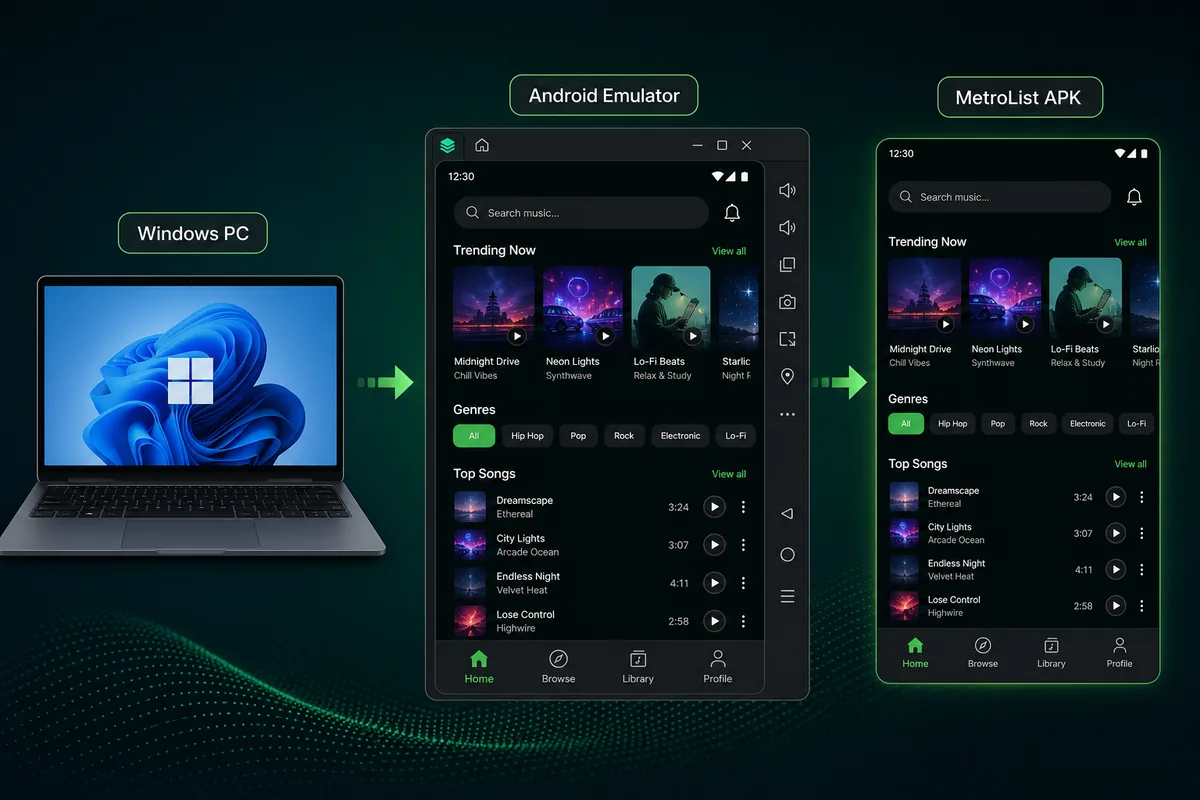
MetroList does not ship as a native Windows desktop app, but you can run the Android APK on a PC through a reliable Android emulator. This guide explains the safest setup path and the tradeoffs before you install.

In this guide
Can You Use MetroList for PC?
Yes, you can use MetroList on a PC, but the practical method is to run the Android app inside an emulator. MetroList APK is built for Android devices, so a Windows computer needs a virtual Android environment before the APK can open and play music.
That distinction matters because many searches for MetroList PC, MetroList Windows, or MetroList desktop lead to confusing download pages. A native EXE installer would be convenient, but it is not the normal MetroList distribution path. Treat any site promising a special MetroList PC crack or standalone Windows installer with caution.
The emulator route is useful if you want a larger screen, keyboard controls, desktop speakers, or a PC music station while you work. It is less ideal if you need very low battery usage, Android Auto, or phone-style background behavior, because those features depend on the emulator and the host computer.
Best practical setup
Use a current Android emulator, install only the MetroList APK you would trust on a phone, and keep both the emulator and APK updated. Do not download repackaged MetroList EXE files.
What You Need Before Installing MetroList on Windows
MetroList is lightweight, but an emulator is heavier than a normal music player. Start with these baseline requirements so playback does not stutter.
| Item | Recommended | Why it matters |
|---|---|---|
| Windows version | Windows 10 or Windows 11 | Modern emulators and virtualization support are more stable on current Windows builds. |
| CPU | Intel or AMD processor with virtualization enabled | Virtualization improves emulator speed and reduces audio lag. |
| Memory | 8 GB RAM or more | The emulator, browser, and music cache can run together without freezing. |
| Storage | At least 5 GB free | You need space for the emulator image, MetroList APK, cache, and offline songs. |
| Network | Stable WiFi or Ethernet | Streaming and first-time library loading need a reliable connection. |
How to Install MetroList APK on PC
The exact buttons differ by emulator, but the installation flow is the same on most Windows setups.
1. Choose and install an Android emulator
Pick a reputable emulator such as BlueStacks, LDPlayer, MuMu Player, or Android Studio Emulator. For most users, a consumer emulator is easier. Developers or advanced users may prefer Android Studio because it is closer to the official Android toolchain.
2. Enable virtualization if performance is poor
If the emulator warns about slow performance, open your PC BIOS or UEFI settings and enable Intel VT-x or AMD-V. This setting usually improves launch speed, scrolling, and audio playback.
3. Download the MetroList APK from a trusted source
Use the download section on this site or the official MetroList GitHub releases page. Avoid files named like MetroList PC.exe, unlocked desktop edition, or modded Windows installer because those are not the normal APK release format.
4. Import the APK into the emulator
Most emulators let you drag the APK onto the emulator window or use an Install APK button. Android Studio users can install through adb. Wait until Android reports that the installation is complete before opening MetroList.
5. Open MetroList and configure playback
Launch MetroList from the emulator app drawer. Set your preferred theme, playback quality, download folder, and optional account sync. Test one track before building a large offline library.
6. Create a desktop shortcut if needed
Some emulators can pin an installed Android app to the Windows desktop. If available, use that shortcut for faster access, but remember it still opens inside the emulator.
Which Emulator Is Best for MetroList PC?
There is no single best emulator for every PC. Choose based on whether you want simplicity, low resource use, or developer control.
| Option | Best for | Notes |
|---|---|---|
| BlueStacks | Beginners who want simple APK installation | Easy setup and desktop shortcuts, but can feel heavy on older laptops. |
| LDPlayer or MuMu Player | Users who want a lighter gaming-style emulator | Often smooth for media apps, but download only from the official site. |
| Android Studio Emulator | Advanced users and developers | Official Android tooling with adb support, but setup takes more time. |
| Windows Subsystem for Android | Existing WSA users | Availability and APK sideloading support depend on your Windows region and current Microsoft support status. |
Recommended MetroList PC Settings
After MetroList opens, spend a few minutes on emulator and app settings. These small changes usually matter more than reinstalling the app when playback feels rough.
For a desktop music setup, prioritize stable audio, predictable storage, and a simple update path. Do not over-tune graphics settings unless the emulator itself is lagging.
- Use a balanced emulator profile - 2 to 4 CPU cores and 3 to 4 GB RAM are enough for most MetroList sessions.
- Keep audio output on the Windows default device - If sound is missing, check Windows volume mixer and emulator audio routing before reinstalling MetroList.
- Limit offline downloads at first - Download a small playlist before caching hundreds of songs so you can confirm where the emulator stores files.
- Update through the same trusted APK source - Install the new APK over the old one when a release is available, then verify your library and settings.
MetroList PC Troubleshooting
Most MetroList PC issues come from emulator permissions, stale APK files, or Windows audio settings.
The APK will not install
Confirm the APK finished downloading, then try the emulator's Install APK button instead of drag and drop. If Android reports a parsing error, download the file again from a trusted source.
MetroList opens but songs do not play
Check your network connection, DNS/VPN settings, and emulator date/time. Some music sources may be blocked in certain regions, so test with another network before reinstalling.
Audio stutters or the emulator freezes
Enable virtualization, close heavy browser tabs, reduce emulator resolution, and allocate more RAM if your PC has enough memory.
Offline downloads are hard to find
Emulators store Android app data inside their own virtual disk. Use MetroList's in-app download controls instead of trying to manage cached files from Windows Explorer.
Limits, Privacy, and Safety Notes
MetroList for PC is still the Android app running in an emulator. It is not the same as a native Windows music player, and some phone-specific behaviors may differ. Android Auto is not useful on a desktop emulator, notification controls can vary, and background playback depends on the emulator's power settings.
Only install APK files from sources you trust. MetroList is an open-source Android project, so a random Windows installer is unnecessary and should be treated as suspicious. If a page asks you to disable antivirus protection or install a bundled downloader, leave that page.
For the cleanest experience, keep the emulator updated, scan downloaded files when appropriate, and review account permissions before syncing. If you only need MetroList on the go, installing it directly on an Android phone remains simpler than maintaining an emulator.
MetroList for PC FAQ
Useful official resources
- MetroList GitHub repository - Official source code and project information.
- MetroList GitHub releases - Check release files and version history before installing.
- Android Emulator documentation - Official Android emulator guidance for advanced setups.
Updated May 2026