How to Create a Playlist in Metrolist: Add, Edit, and Sort Songs
Create a local playlist, add tracks from the player or library, keep the order useful, and understand where YouTube sync or export fits.

In this guide
What Happens When You Create a Playlist in Metrolist?
Metrolist treats a new playlist as a library object that can hold songs and keep their positions. The official project source includes local playlist data, editable state, song-to-playlist mappings, created and updated timestamps, and optional links to a YouTube playlist. In other words, creating a playlist is not the same as downloading an APK or importing a Spotify collection: it is an in-app organization task.
The safest first test is small. Create one playlist with a clear name, add two or three recognizable songs, close and reopen the playlist, and confirm that the order and artwork look right. This separates a successful local database change from a later problem with network sync, missing metadata, or a song that is no longer available.
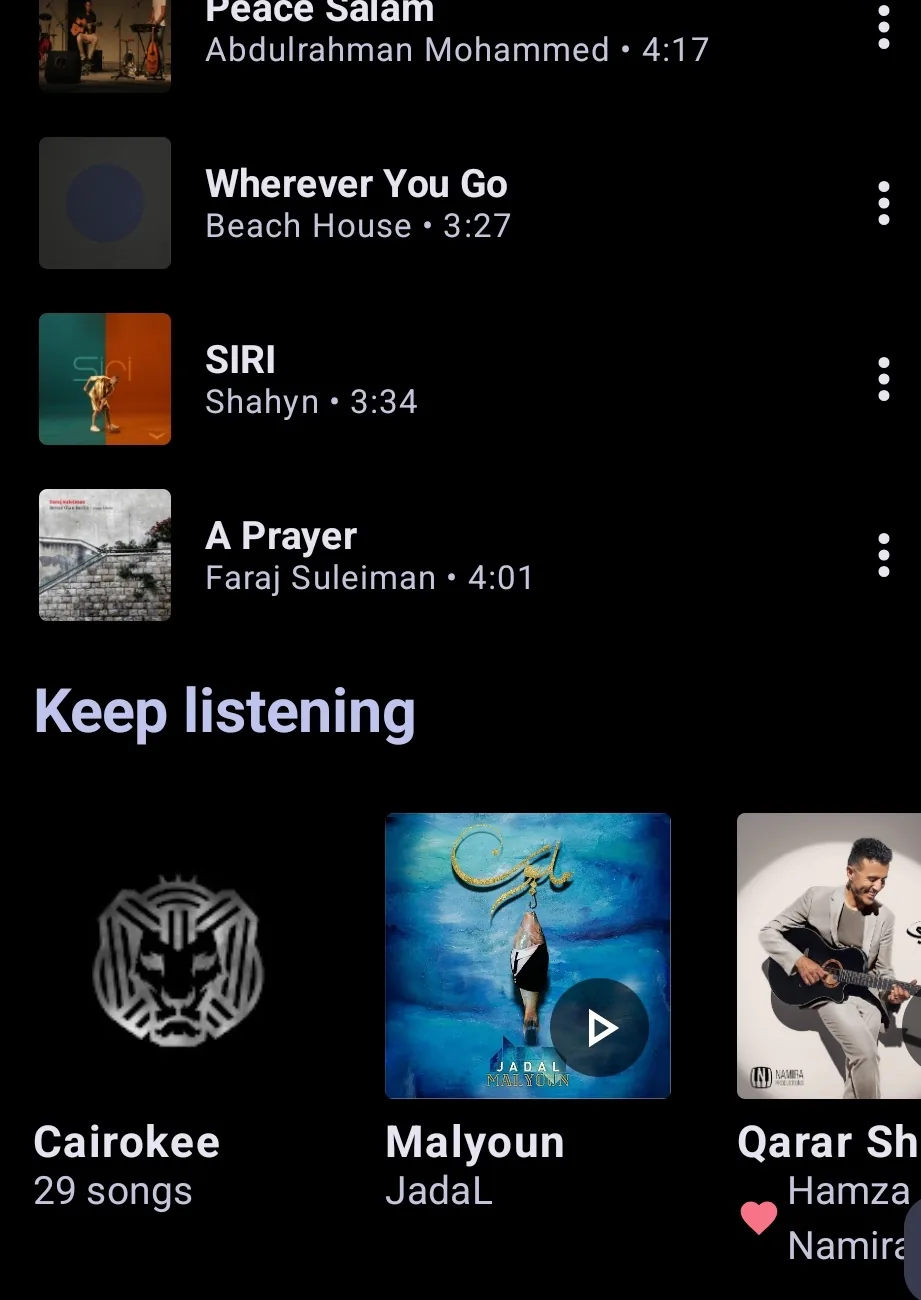
The exact iconography can change with a new build, Android screen size, or translated UI. Look for Library, Playlists, an add action, and a create action rather than relying on the position of one button in an old screenshot. The screenshots in this guide are real project images used as orientation, not a promise that every release looks identical.
Best practical rule
Create locally, test with a tiny playlist, then add more songs. Do not clear app data or install a random mod APK just because one playlist update appears delayed.
Local Playlists, Synced Playlists, and Search Boundaries
Before following the steps, decide which playlist problem you are actually solving. This prevents a new playlist guide from becoming a download, Spotify transfer, or offline-cache guide.
| Playlist case | What it means | Best next step |
|---|---|---|
| Local playlist | A playlist stored and edited in the app library. | Create it first and verify songs before adding a large batch. |
| YouTube-linked playlist | A playlist with a remote browse ID or optional account sync. | Stay online when linking or syncing, then check the result in both views. |
| Downloaded or cached songs | Playback data stored for offline use, not a playlist export. | Use the offline mode guide for storage and cache limits. |
| Spotify transfer | Moving a collection from another service into Metrolist. | Use the dedicated Spotify playlist import guide instead. |
| APK version problem | The app itself cannot create or save the playlist reliably. | Check the official release and the troubleshooting guide before reinstalling. |
How to Create a Playlist in Metrolist
The most reliable route starts from the library rather than from a download page. Open Metrolist and let the home or library data finish loading. If this is a new installation, play one normal track first so the app has a working session before you test playlist changes.
A local playlist usually needs only a name at creation time. Choose a name that tells you what belongs there, such as Morning Walk, Study Queue, or Weekend Drive. Avoid making ten nearly identical test playlists because duplicates make later sorting and sync checks harder.
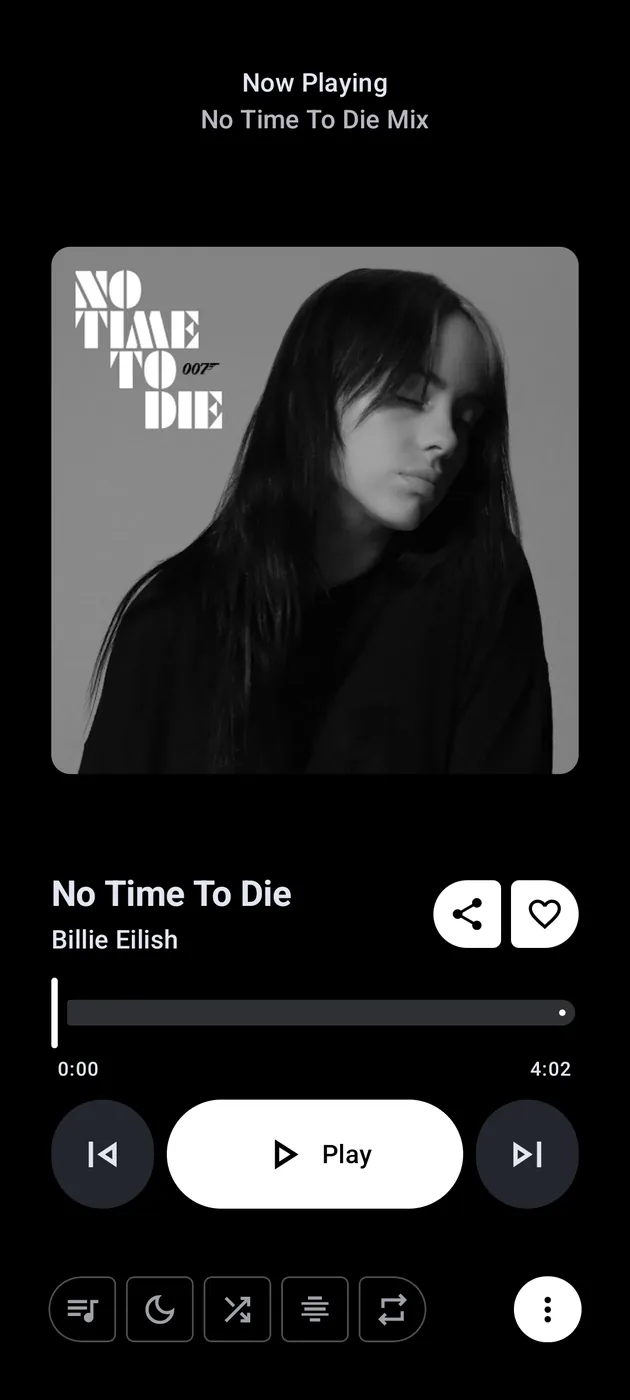
The official Android screenshots show the broader library and player context: playlists sit alongside songs and other collections, while the player exposes menus for actions on the current track. Use those screens to orient yourself, then follow the labels in the installed release.
- Open Library — Go to the Library tab or the library screen that lists songs, albums, artists, and playlists.
- Open the playlists area — Choose Playlists. If the screen has filters or sort chips, leave the default filter in place until the new list exists.
- Choose Create playlist — Tap the add or create action, enter a short name, and confirm. If a dialog asks for a title only, that is enough for the first save.
- Add the first song — Open a song, album, artist, or player overflow menu and choose the add-to-playlist action. Select the new playlist rather than creating another copy.
- Confirm the list — Return to Library, open the playlist, and check the title, artwork, song count, and first few tracks.
- Build gradually — Add a few more tracks in batches. If one source fails, you will know which addition caused the problem instead of debugging a hundred-song list.
How to Edit and Manage a Metrolist Playlist
After creation, playlist management is mostly about small, reversible edits. Open the playlist before changing anything, use the item menu for a single song, and keep a note of the original order when the list matters. Local playlist records include positions, so order is part of the data rather than just a visual suggestion.
The app can also show playlists that came from a remote source. Those entries may not behave like a fully local list: the title, track count, artwork, and edit controls can depend on account state or network access. If an edit button is missing, first determine whether you are looking at a remote playlist, a system playlist such as liked or downloaded songs, or a normal editable local playlist.
Do not confuse removing a song from a playlist with deleting the song from the device. A playlist edit changes membership; clearing cache or app data is a much larger action that can affect playback state, settings, and locally stored information.
Rename the playlist
Use the playlist menu or edit action when available. Keep the name unique enough that it is easy to identify in the library and in any sync dialog.
Add from the current player
The player menu is useful when you discover a song while listening. Select the playlist and wait for the confirmation or updated count before leaving the screen.
Remove one unwanted track
Use the track's overflow menu inside the playlist and choose the remove action. Removing membership should not be treated as deleting the original song.
Reorder only after the list is stable
If the release exposes drag handles or a move action, reorder a small group first and reopen the playlist to verify the positions.
Check duplicates
Live, remix, and album versions can look similar. Compare artist and duration before removing a duplicate that might be intentional.
Separate local and remote work
If a remote change does not appear, reconnect and let sync finish. Do not create multiple local copies as a substitute for diagnosing the original source.
Sort Order and Optional YouTube Sync
Playlist sorting answers a different question from song reordering. Sorting the library can help you find a playlist by name, creation date, song count, or last update; reordering inside a playlist changes how songs appear or play. Decide which level you need before changing the order, especially when a list is synced to another source.
The source code also records optional auto-sync state for playlists and a remote browse ID. That is useful evidence that sync exists as a boundary, not a guarantee that every local edit immediately becomes a remote edit. Network access, account state, playlist ownership, and the current release all matter.
If you only want a personal listening sequence, keep the playlist local. If you need the same list on YouTube, connect deliberately, wait for sync, and verify a small change before trusting the entire collection.
| Goal | Use | Verification |
|---|---|---|
| Find a playlist quickly | Sort the library by name or recent update. | The list moves in the library, but its songs do not necessarily change order. |
| Change playback sequence | Use the playlist's reorder or position control if exposed. | Close and reopen the playlist to confirm the first tracks. |
| Share a remote playlist | Use the available share or remote link action. | Check that the link points to the intended playlist, not a local-only list. |
| Sync to YouTube | Enable or use the release's optional sync flow while online. | Make one small test edit and check both sides before bulk changes. |
| Keep an offline trip list | Use a local playlist plus the offline preparation steps. | Test saved tracks in Airplane Mode; offline cache is not an export file. |
Export, Backup, and Transfer Limits
Metrolist's source includes playlist export-related code and remote playlist links, but export should be treated as a controlled data handoff rather than a promise that every music service accepts the same file. A playlist export can preserve names or identifiers while still requiring a destination service to resolve each song.
This distinction matters for the search terms around Spotify. Moving a Spotify playlist into Metrolist is a separate workflow with different matching risks, so use the existing import guide rather than repeating that intent here. This page stays focused on creating and managing playlists that already live in Metrolist.
Before a major update or reinstall, write down the names of important playlists and confirm whether each one is local or remote. That lightweight backup is often more useful than assuming an app-managed cache will survive a clean reinstall.
- Export the right object — Choose a playlist export action, not an audio download action. Exporting a list and downloading songs solve different problems.
- Keep the source link — For a remote playlist, keep the official or service link so you can compare the destination after an import or sync.
- Expect unmatched songs — Titles, artists, regional availability, and live or remix versions can prevent a destination from resolving every track.
- Back up names before reinstalling — A short text note with playlist names and purpose gives you a recovery path even when local app data is lost.
- Use the existing transfer guide — For Spotify-to-Metrolist questions, follow the dedicated import page instead of treating export as a one-click cross-service converter.
Metrolist Playlist Troubleshooting
When a playlist does not save, change one variable at a time. First confirm that ordinary playback and the library load correctly. Then create a tiny test list, add one recognizable track, and reopen it. This tells you whether the problem is creation, song matching, sync, or a larger app failure.
Avoid clearing data or jumping to an unknown APK as the first fix. Those actions can remove local playlists, hide the original error, and introduce a second problem. Compare the installed version with the official GitHub release only after the small local test has failed consistently.
The Create playlist action is missing
Open the normal Library playlists view, leave any search or filter, and check whether you are viewing a system or remote list. Update from the official release only if the feature is still absent in a clean, supported view.
The new playlist is empty
Add one well-known song from the track menu, wait for the confirmation, then reopen the list. An empty result can be a missed selection rather than a database failure.
The song appears twice
Compare artist, album, duration, and version labels. Remove only the duplicate membership you do not want; do not delete app data.
The order resets
Reopen the playlist after a small reorder. If a remote playlist is involved, let sync finish and test one position before rearranging the full list.
Changes do not sync
Reconnect, confirm the account or remote playlist state, and check the current release notes. A local playlist can remain correct even when a remote request is delayed.
The playlist disappeared after reinstall
Local app data may not survive a clean uninstall. Rebuild from your notes or export, and use the official release page rather than an APK advertised as a recovery tool.
Everything in the app is failing
Stop treating it as a playlist-only issue. Use the main MetroList not working guide, check network access, and verify the official APK version before making a larger change.
Version and Source Check Before You Reinstall
This is an App/APK download site, so the version check is part of the publishing gate even though this article is informational rather than a download landing page. The official GitHub release feed was checked on August 22, 2026. It still showed v13.6.3, published August 7, 2026, and no newer stable release was found.
The standard Metrolist.apk asset is listed at 24,146,395 bytes. The same release also lists an Izzy build and a Google Cast build. Those variants are not required just to create a local playlist; choose them only for a specific compatibility reason, and compare the tag, filename, MIME type, and release metadata before installing.
If playlist creation fails only on an old or repackaged APK, move to the official release page and the GitHub verification guide. Do not describe a random mirror, EXE, password ZIP, or mod build as an official playlist fix.
| Checked field | Verified detail | Why it matters |
|---|---|---|
| Latest stable tag | v13.6.3 | Use a release tag rather than a mirror headline. |
| Publication date | August 7, 2026 | A concrete date is easier to compare than the word latest. |
| Standard asset | Metrolist.apk | The normal Android package for most users. |
| Standard size | 24,146,395 bytes | Compare exact release metadata before downloading. |
| Google Cast asset | 25,774,469 bytes | Only choose this variant when Cast support is needed. |
| Source | MetrolistGroup/Metrolist GitHub releases | The first-party release page is the durable reference. |
Metrolist Create Playlist FAQ
Official sources checked
- Metrolist official GitHub repository — Source code and feature implementation for local playlists, editing, positions, and sync-related fields.
- Metrolist official releases — First-party release tags, APK asset names, sizes, and publication dates.
- Metrolist v13.6.3 release — The specific stable release checked on August 22, 2026.
Choose the smallest next step that matches your playlist problem instead of reinstalling from an unverified page.