MetroList Not Working? 9 Fixes for Songs Not Playing
When MetroList opens but songs refuse to play, the cause is usually network access, a stale APK, YouTube-side changes, cache corruption, or a device setting that blocks background playback. Use this guide to isolate the problem before reinstalling everything.

In this guide
Why MetroList Stops Playing Songs
MetroList depends on a working Android environment, a usable music source, and a current app build. If one of those layers changes, the app may still open normally while songs spin forever, skip immediately, show no results, or fail after a few seconds. That is why a clean fix starts with diagnosis rather than random APK downloads.
The most common causes are simple: a weak DNS/VPN route, battery saver stopping the player, corrupted cache after an update, an outdated APK, or a temporary source-side change that the app has not adapted to yet. Less often, the issue is account-related, device-specific, or caused by installing a modified build from an unsafe mirror.
Do not start by deleting all app data. Clearing data can remove local settings, downloads, or playlist state. Start with reversible checks, then move toward cache cleanup, safe update, and reinstall only if the same song fails across multiple networks.
Best first move
Try one known popular song on mobile data and Wi-Fi. If both fail, check for a MetroList update or open GitHub issue before assuming your phone is broken.
Match Your MetroList Problem Before You Fix It
Use the symptom table to decide what to test first. The same fix does not apply to every MetroList not working case.
| Symptom | Likely cause | Start with |
|---|---|---|
| Songs load but never start | Network, DNS, source change, or stale app build | Switch network, force close, then check releases |
| Only downloaded songs fail | Cache, storage, or offline source refresh | Use the offline mode guide and avoid clearing all data first |
| Search returns blank results | Source API change, regional blocking, or connection filtering | Test another network and compare GitHub issue reports |
| Playback stops when screen turns off | Android battery optimization or background restriction | Allow background activity and disable battery saver for MetroList |
| One song fails but others play | Track unavailable, region restriction, or temporary source failure | Test another version of the song or artist page |
| The app crashes on launch | Corrupted install, incompatible build, or old Android WebView/system component | Update the APK from the trusted source and restart the device |
9 Fast Fixes When MetroList Songs Are Not Playing
Work through these in order. Each step is designed to preserve your data until you know a deeper reset is needed.
1. Force close MetroList and reopen it
Open Android app settings, force stop MetroList, wait a few seconds, then reopen it. This clears a stuck playback session without touching playlists or downloads.
2. Switch networks
Test the same song on Wi-Fi, mobile data, and a different DNS or VPN state. If one network works, the problem is probably routing, filtering, or regional access rather than MetroList itself.
3. Try a known popular track
Do not diagnose with one obscure upload. Search for a mainstream song or artist and test several results. A single broken track can point to availability rather than an app-wide failure.
4. Clear cache, not data
In Android settings, clear MetroList cache first. Avoid Clear storage or Clear data until you have backed up anything important, because that can reset app state.
5. Allow background playback
Disable battery optimization for MetroList if songs stop with the screen off. Some Android skins aggressively pause third-party media apps.
6. Check storage space
Low storage can break cache writes and offline queues. Keep several hundred MB free before blaming the APK.
7. Update from the same trusted source
Install the current APK over the existing build when a trusted release is available. Do not jump to a random modded file just because it claims to fix playback.
8. Restart the device
A restart resets Android audio routing, network state, and background service limits. It is basic, but it often fixes a stuck media session.
9. Compare with GitHub reports
If many users report playback errors at the same time, waiting for a project fix may be safer than repeated reinstall attempts.
How to Read Playback Errors and Error Code Reports
MetroList users sometimes report messages such as playback failed, unknown error, no streams, or error code 2000. The exact wording can vary by version and device, but the repair path is similar: identify whether the failure is local, network-based, or widespread.
If the error appears after every tap, it is probably app-wide or network-wide. If only a few tracks fail, the source may be unavailable for those songs. If the message started after an APK update, compare release notes and issue reports before downgrading.
| Error pattern | What it usually means | Best action |
|---|---|---|
| Playback failed instantly | The app cannot obtain a playable stream | Update MetroList and test another network |
| Song buffers forever | Network, DNS, throttling, or source timeout | Switch DNS/VPN state and retry later |
| Error appears after update | Release regression or changed setting | Check GitHub issues before reinstalling |
| Only offline tracks fail | Cache was removed, expired, or blocked | Review offline storage and download status |
| Only background playback fails | Battery saver or media permission | Allow unrestricted battery/background use |
Do Not Confuse Online Playback Bugs with Offline Mode Limits
A MetroList not working search often mixes two different problems. Online playback means the app cannot stream a song right now. Offline playback means a saved or cached track cannot be used without a stable source refresh or local file state. The fixes overlap, but they are not identical.
If streaming works but downloaded songs fail, read the dedicated offline mode guide. If nothing plays online or offline, this troubleshooting page is the better starting point because it checks the app, network, release source, and Android settings first.
- Online failure - Usually tied to source access, network routing, app version, or a widespread playback change.
- Offline failure - Usually tied to cache state, storage cleanup, download completion, or app data removal.
- Mixed failure - Treat it as a general app problem first, then retest offline downloads after online playback is stable.
Safe Update and Reinstall Checklist
Updating is often the real fix, but unsafe downloads can create a bigger problem than the playback error. Keep the update path boring and verifiable.
If you are about to install a random playback-fix APK, check the safety guide first: MetroList APK safety checks
Verify the source
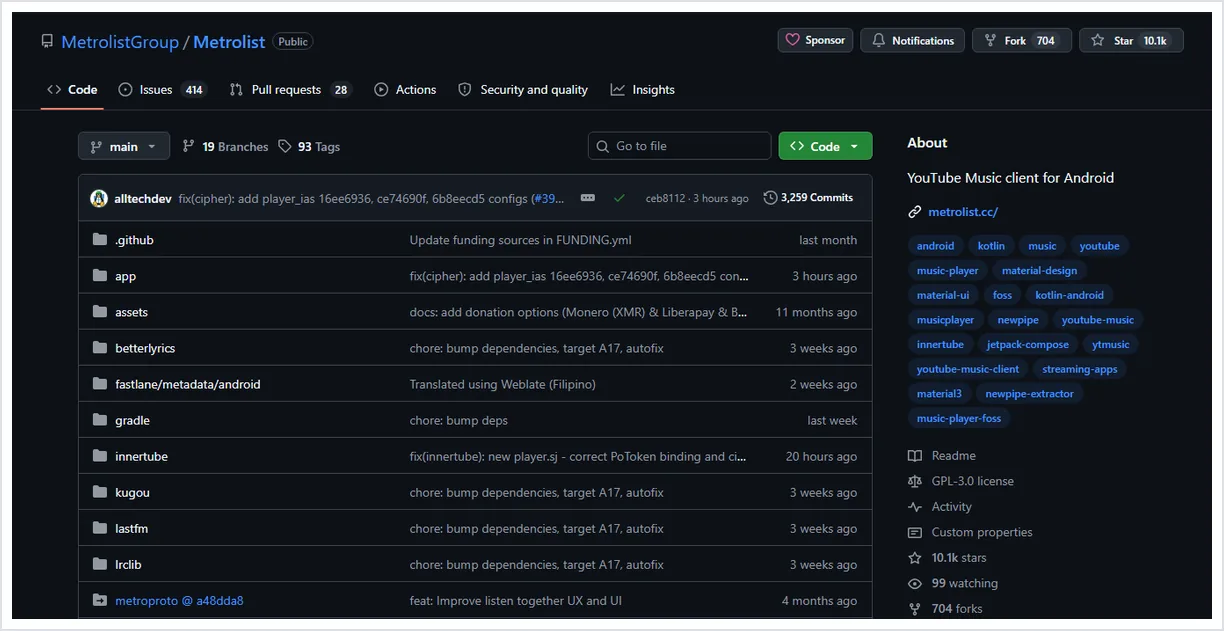
Use the official MetroList GitHub release page or a source you already trust. Check the repository owner, asset name, version, and publish date before installing.
Install over the current app first
If Android allows it, install the updated APK over your existing app so settings and local state have a better chance of staying intact.
Back up before clearing data
If a reinstall is unavoidable, record important playlists and settings first. Clear data only when cache cleanup and an over-install do not solve the issue.
Avoid fake fix builds
Do not install files promoted as MetroList unlocked, special playback fix, or PC EXE. Those terms are common warning signs for repackaged downloads.
When the Best Fix Is Waiting
Because MetroList is a third-party music client, some playback failures are caused by upstream changes rather than your device. If many users report the same issue on GitHub or community channels, repeated reinstalls will not help much.
You can still use the waiting time productively: confirm that your network is normal, keep storage available, save any important playlist details, and read release notes before applying the next APK.
MetroList Not Working FAQ
Useful verification links
- MetroList official GitHub repository - Use it to verify the project, issue history, and current development status.
- MetroList GitHub releases - Check release assets before updating or reinstalling the APK.
- Android battery optimization help - Google's general guidance for app battery and background behavior.
Updated July 2026