How to Import Spotify Playlists to MetroList
A practical guide to moving Spotify playlists into MetroList with CSV exports, direct share options, and the safer YouTube Music sync fallback when CSV import does not match your app build.

In this guide
Can You Import Spotify Playlists into MetroList?
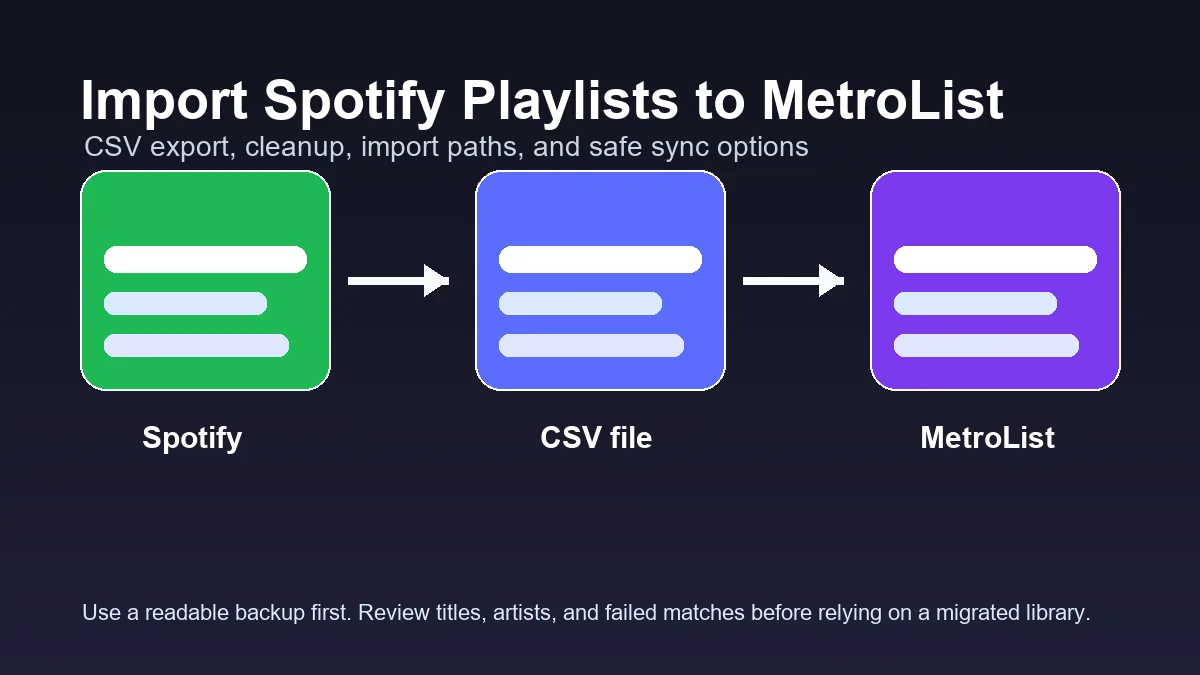
Yes, but it is better to think of the process as playlist migration rather than a perfect one-click import. MetroList is a YouTube Music client, while Spotify stores playlists in its own catalog. A CSV file can preserve track names, artists, album names, order, and URLs, but MetroList still has to find matching songs from YouTube Music or the app library.
For small public playlists, the Android share sheet may be enough: open the Spotify playlist, tap share, choose more, and check whether MetroList appears as a target. For larger collections, start with a CSV backup so you can inspect the data before importing. This gives you a fallback if the app cannot read the file or if some tracks match the wrong version.
The most reliable route for many users is still Spotify to YouTube Music, then YouTube Music account sync inside MetroList. That path takes one extra step, but it often handles large playlists and future sync better than a raw CSV import.
Best practical choice
Use CSV as your backup and audit file. Use MetroList CSV import when it works on your build. Use YouTube Music sync when you need the playlist to remain connected to an account.
Recommended Spotify to MetroList Workflow
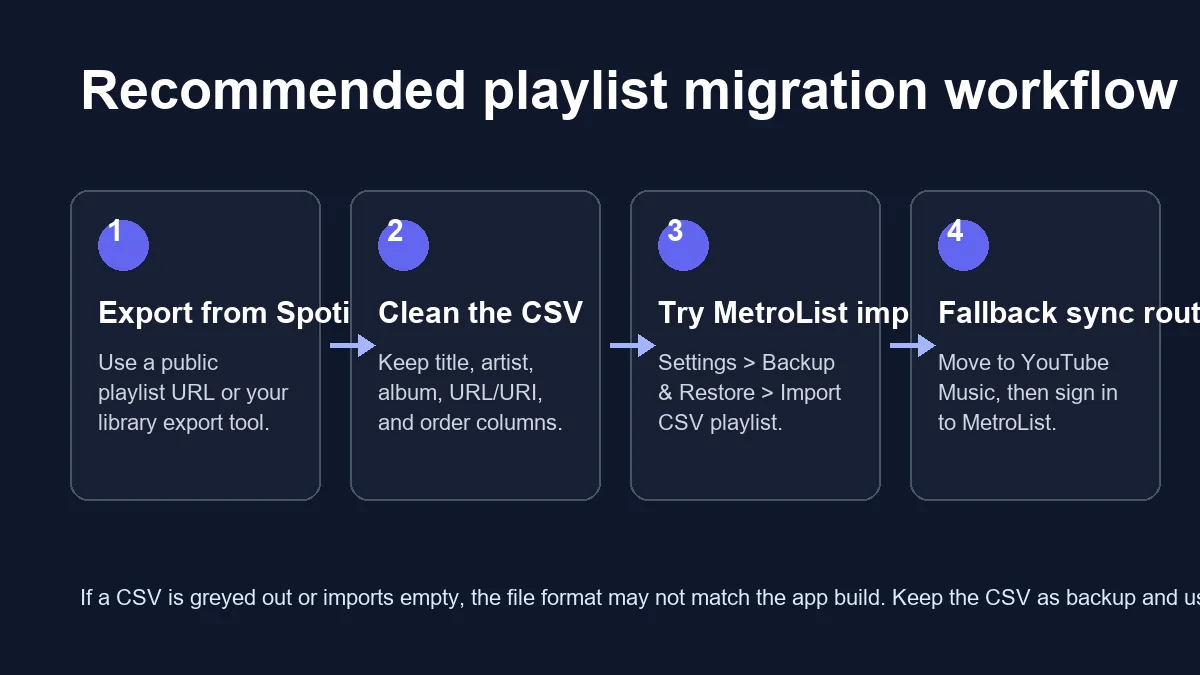
Do not start by downloading random APK mods or desktop converters. A clean workflow separates backup, cleanup, import, and verification so you know exactly where a problem happens.
| Stage | What to do | Why it matters |
|---|---|---|
| Export | Use a Spotify playlist exporter such as Exportify, Spotlistr, Chosic, or another trusted CSV tool. | Spotify does not provide a normal CSV export button in the consumer app, so an exporter creates the working file. |
| Clean | Keep title, artist, album, URL or URI, and track order. Remove duplicate header rows or empty lines. | Cleaner columns improve matching and make failed songs easier to fix manually. |
| Import | In MetroList, try Settings > Backup and Restore > Import CSV playlist, or use the Android share flow if your version supports it. | This tests the direct route before you move the playlist through another service. |
| Verify | Open the new playlist, play several tracks, compare the count, and check missing or wrong versions. | Playlist migration is matching, not file copying. Verification prevents silent library mistakes. |
| Fallback | Transfer the Spotify playlist to YouTube Music, then sign in with the same account in MetroList. | Account sync is usually more stable for ongoing use than repeated CSV imports. |
What CSV Format Works Best for MetroList?
There is no universal Spotify CSV layout because every exporter chooses different column names. Some files include Spotify URI, ISRC, popularity, album art, duration, and added date. MetroList does not need every analytics column. The important part is a clear song identity that can be matched against YouTube Music.
Before importing, open the CSV in a spreadsheet app and save a clean copy. Keep one row per track, use UTF-8 if possible, and avoid merged cells or formulas. If your CSV export includes local files, podcast episodes, or unavailable Spotify-only tracks, mark them because they may not match in MetroList.
| Field | Keep or optional | Use |
|---|---|---|
| Track title | Keep | The main text MetroList or a transfer tool can search for. |
| Artist name | Keep | Prevents wrong matches when several songs share the same title. |
| Album name | Optional but useful | Helps identify remasters, live versions, and soundtrack versions. |
| Spotify URL or URI | Keep as reference | Useful for checking the original track, even if MetroList cannot play Spotify links directly. |
| Track order | Keep | Makes it easier to compare the migrated playlist with the original. |
| Popularity, artwork, added date | Optional | Good for archives, but usually not required for import. |
How to Import a Spotify Playlist to MetroList
Use these steps when you want the safest route from Spotify playlist to MetroList without losing your original library.
1. Export the Spotify playlist to CSV
Copy the Spotify playlist link and export it with a reputable CSV tool. Public playlists usually need only the playlist URL. Private playlists may require a Spotify login, so check the tool permissions before authorizing anything.
2. Create a clean working copy
Open the CSV in Excel, Google Sheets, or LibreOffice. Remove empty rows, confirm the title and artist columns are readable, and save a backup copy before changing anything. Do not overwrite your only export.
3. Try MetroList CSV import
Open MetroList, go to Settings, then Backup and Restore, and choose the playlist CSV import option if it is available in your version. Select the cleaned CSV file and wait for MetroList to build the playlist.
4. Check file selection problems
If Android greys out the CSV file, try saving it in Downloads, renaming it with a simple .csv extension, or exporting again as plain CSV instead of XLSX. A spreadsheet file with a .xlsx extension is not the same as a CSV.
5. Verify the imported playlist
Compare the song count, play several tracks, and check tracks with identical names. If many songs are missing, the problem is usually format mismatch or catalog matching, not the playlist backup itself.
6. Keep the CSV as a portable backup
Even if you use a sync fallback later, keep the CSV. It is a readable archive of your playlist and can help you rebuild or audit the collection in another tool.
When You Should Use YouTube Music Sync Instead
If your goal is a playlist that behaves naturally inside MetroList, account sync may be the better path. Transfer the Spotify playlist to YouTube Music with a playlist transfer service, review the matched tracks, then log in to the same YouTube account in MetroList.
This fallback is especially useful when the CSV file imports but produces empty playlists, when the file picker cannot select CSV files, or when a playlist has hundreds of tracks. The tradeoff is that you must use a transfer service and account login instead of a purely local backup file.
- Use it for large playlists - Large playlists are easier to verify when the destination service handles paging and matching.
- Use it when order matters - Some CSV routes lose order or fail silently. A transfer workflow lets you preview the playlist before using it in MetroList.
- Use it for ongoing sync - A one-time CSV import is static. Account sync is better if you keep editing the playlist later.
MetroList CSV Import Troubleshooting
Most failures come from file type, missing columns, app version differences, or catalog matching.
The CSV file is greyed out
Confirm the extension is .csv, not .xlsx or .txt. Move it to Downloads, avoid special characters in the filename, and export again as comma-separated UTF-8 text.
The playlist imports empty
Open the file and confirm it has one track per row with title and artist data. If the export only contains Spotify IDs without readable names, use a different exporter or add columns before importing.
Some songs are wrong
Playlist import depends on matching. Add artist and album columns, remove live/remix ambiguity where possible, and manually replace the few wrong tracks after import.
Only part of a long playlist appears
Refresh the playlist if the app supports it, split the CSV into smaller files, or use the YouTube Music sync fallback for very large playlists.
Spotify links do not play in MetroList
A Spotify URL is a reference, not a playable YouTube Music source. MetroList must find an equivalent track from the services it supports.
Privacy and Safety Notes
A playlist CSV can reveal your listening habits, private playlist names, and account-linked URLs. Do not upload private exports to unknown websites unless you understand what access the tool requests and how it handles your data.
Avoid tools that ask you to install a special MetroList PC executable, disable antivirus, or download a modded APK just to import playlists. MetroList is an Android app; playlist migration should not require a random Windows installer.
Use official or transparent sources whenever possible. The MetroList GitHub repository confirms that the app supports playlist import and account library features, while exporter tools such as Exportify or Spotlistr are useful for creating a readable CSV backup. Always review the CSV before relying on the migrated playlist.
Spotify to MetroList Import FAQ
Useful resources
- MetroList GitHub repository - Official project page listing playlist import and account library features.
- Exportify - Exports Spotify playlists to CSV or JSON for backup.
- Spotlistr Spotify export - Shows common export fields such as title, artist, URI, ISRC, and order.
- MetroList community import discussion - User reports about CSV import, Android file picker behavior, and share-sheet alternatives.
Updated May 2026