Metrolist Sleep Timer: How to Set It and Fix Common Problems
The player includes a Sleep timer control for people who want playback to stop after a chosen point. This guide shows where to look, how to test it, and what to check when the control or stop action is missing.

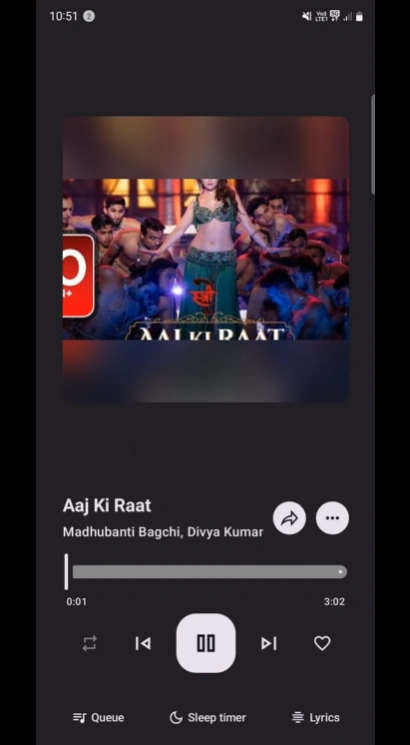
In this guide
How the Metrolist Sleep Timer Works
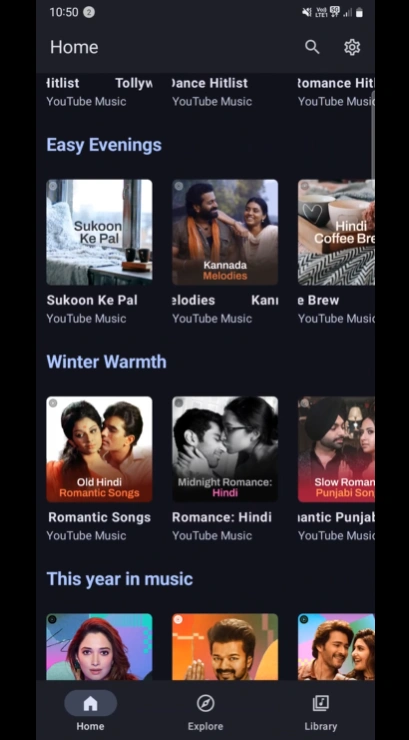
The Metrolist sleep timer is a playback control inside the expanded music player. It is useful when you want a playlist, album, or current track to stop after you fall asleep, finish a study session, or reach the end of a commute. The official project lists Sleep timer as one of its player features, and the in-repository player screenshot shows the control next to Queue and Lyrics.
Think of the timer as a stop instruction attached to the current listening session. It does not change the song, remove the queue, save an APK, or turn streaming into permanent file ownership. A timer can stop playback while the phone remains connected, but it cannot make a missing track load when the network or source is unavailable.
How to Set a Sleep Timer in Metrolist
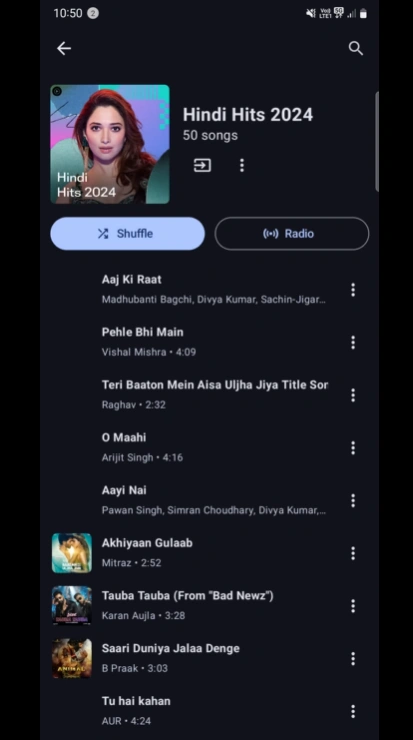
Start with a normal track that plays reliably. Using a recognizable song makes the first test easier because you can separate a timer problem from a search, metadata, or source problem. You can begin from Home, Explore, or Library; the important part is reaching the full player rather than staying on the compact bottom bar.
The player screenshot below is a visual reference for the control location, not a promise that every release has identical spacing. Look for the Sleep timer label or its clock-style control near the lower player actions. If you use a translated build, follow the equivalent local label instead of searching for the English wording alone.
- Play a dependable track — Choose a song or playlist that already loads and plays while you are online.
- Open the full player — Tap the current-song bar or artwork to expand the player; the compact bar may not show every action.
- Tap Sleep timer — Find the Sleep timer control near the Queue and Lyrics actions shown in the player reference image.
- Choose an option — Select the duration or end condition displayed by your installed release; do not assume another version has the same menu.
- Confirm the timer — Return to the player and look for a changed timer state, countdown, or confirmation label if your build exposes one.
- Run a short test — Use a short interval while awake, then cancel it and set the final bedtime or commute option when the behavior is clear.
Practical Metrolist Timer Examples
A good timer setting depends on the listening situation, not on a claim that one duration is best for everyone. If you are trying the feature for the first time, choose the smallest useful window and observe what happens when playback reaches the stop point. The goal is predictable playback, not a complicated automation setup.
For bedtime, start a familiar low-volume playlist and keep the phone on a stable surface with enough battery. For study or reading, a timer can mark the end of a session without leaving music playing indefinitely. For a commute, use it as a reminder that the current listening session should stop near arrival, while keeping an alarm or navigation app separate.
Metrolist Sleep Timer Not Working? Try These Fixes
When the Metrolist sleep timer is not working, first identify which part failed: the control is missing, the option will not save, playback does not stop, or playback stops earlier than expected. Those cases point to different causes. Changing one variable at a time keeps your playlists, cache, and settings safer than immediately clearing all app data.
Use a known-good track and an online connection for the first diagnosis. If search, playback, and the player are all failing, this is broader than a timer issue; use the general troubleshooting guide. If only the timer is affected, check the full player, background permission, battery policy, and release source in that order.
- The control is not visible — Open the expanded player, rotate or resize the screen if appropriate, and check the current official release before assuming the feature was removed.
- The selection does not save — Choose an option once, wait for the player to update, and avoid repeated taps that can open or cancel overlapping controls.
- Playback never stops — Run a short test while the app remains active, then check whether Android battery optimization or force-stop behavior ended the timer process.
- Playback stops too soon — Confirm the selected option, check whether a previous timer was still active, and test with one track instead of a changing queue.
- The timer disappears after reopening — Some playback state may be session-based. Reopen the player, set a new timer, and do not treat a missing label as proof that the APK is unsafe.
- Another app keeps playing — Pause the other media app and test MetroList alone. The Sleep timer is not a system-wide audio shutdown.
- Everything broke after an update — Read the official release notes, keep the installed version noted, and use the same trusted source for any reinstall or update.
Battery, Queue, and Offline Limits
A sleep timer can only act while MetroList has a chance to keep its playback session alive. Android battery optimization, manufacturer background policies, low storage, and manual force-stop actions can interrupt the app before the timer reaches its stop point. These are device-level limits, not evidence that a different APK mirror will fix the feature.
The timer also does not change offline rights or cache behavior. A saved track may play without a connection, but a new search, missing metadata, or an uncached queue item can still need the network. Prepare offline music using the separate offline guide, then test the timer and offline playback independently so one failure does not hide the other.
Version and Source Checks Before Reinstalling
Because this is an APK-focused site, source checking comes before a reinstall recommendation. The official MetroListGroup/Metrolist release checked on September 14, 2026 is v13.7.0, published September 7, 2026. That fact is a timestamped reference, not a promise that every device should update immediately or that a newer build cannot appear later.
If the Sleep timer is missing, compare the owner, release tag, package type, and publication date on the official repository first. Do not trust a page that offers a MetroList EXE, IPA, password ZIP, survey download, or a special premium timer unlock as though it were a normal Android release.
- Check the repository owner — Use the MetroListGroup/Metrolist project and compare it with look-alike repositories.
- Check the release tag — Compare the installed build with the current official tag and its publication date.
- Check the Android asset — A normal Android release uses an APK; an EXE or IPA is not a MetroList Android update.
- Keep your test notes — Record the timer option, screen state, battery policy, and whether the track was online or cached.
- Escalate broad failures — If search and playback also fail, move to the main troubleshooting and update guides instead of repeating timer taps.
Metrolist Sleep Timer FAQ
Official sources checked
- MetroList official GitHub repository — Project identity and the published feature list, including Sleep timer.
- MetroList official v13.7.0 release — Version freshness check performed on September 14, 2026.
Choose the smallest next check that matches the problem before changing your APK.