Metrolist Equalizer: Setup, Profiles, and Android Fixes
Find MetroList's built-in EQ, understand the separate Android sound panel, and isolate common problems without changing unrelated playback settings.

Metrolist Equalizer: Built-In EQ vs Android System EQ
The phrase Metrolist equalizer can refer to two different controls. MetroList's built-in equalizer applies a profile inside the app's playback path. The system equalizer is provided by Android or the phone maker and runs outside that screen. MetroList can request the system panel, but the available controls and whether a panel opens depend on the device software.
Use the in-app EQ when you want a profile tied to MetroList playback. Use the Android panel when you want to inspect the phone's own audio effects or a vendor feature such as Dolby Atmos. Avoid stacking strong changes in both places while diagnosing a sound problem: two curves can cancel each other, distort the signal, or make volume comparisons misleading.
MetroList's audio settings also include controls that are not equalizers. Audio normalization adjusts perceived loudness between tracks; crossfade blends adjacent tracks; skip silence changes playback timing; and audio offload affects how audio is rendered. If a song is simply quieter than another, identify which control is active before moving EQ bands.
| Control | Where it acts | Use it for |
|---|---|---|
| MetroList built-in equalizer | MetroList playback | Saving or applying an EQ profile for app audio. |
| Android system equalizer | Device audio effects | Checking phone-maker effects or system profiles when exposed. |
| Audio normalization | Track loudness | Reducing loudness differences between tracks, not changing frequency balance. |
| Volume control | Device or app output level | Setting listening level; it does not correct a tonal imbalance. |
How to Open the Metrolist Equalizer
The project documentation places audio controls under Settings > Player & Audio and describes a built-in equalizer screen for loading and applying custom profiles. Labels can move between releases, so use the settings search or the closest Player & Audio entry if your layout differs. Start playback before testing so you can hear the result while the same track is running.
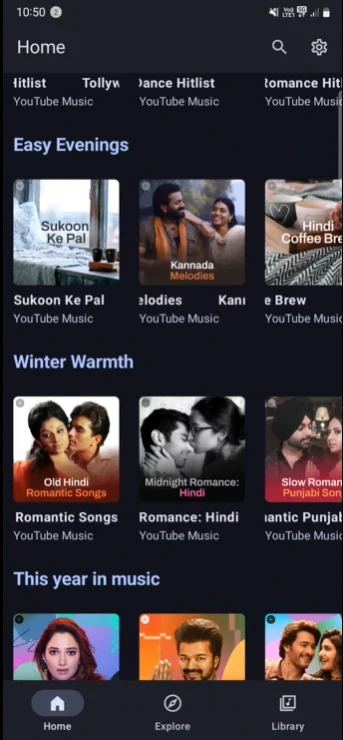
The app screenshot below shows the home screen used to reach settings. The gear is visible in this captured layout, but the exact route can change with screen size and release. Follow the labels on your installed build rather than treating a screenshot as a promise about every device.
- Start with one known track. Choose a song that plays normally and keep it available for the whole test. Familiar audio makes changes easier to notice.
- Open MetroList settings. Use the gear or the app's settings entry, then look for Player & Audio. If the wording differs, search the settings list for audio or equalizer.
- Open the built-in EQ screen. Select Equalizer from the audio controls. The app may show a profile list, controls, or an import action depending on the installed version.
- Apply a modest change. Choose a profile or move one band slightly, then return to playback. Avoid changing every slider at once because you will not know which move helped.
- Compare at a matched volume. Switch the profile off and on using the same track and a similar loudness. A louder version can seem better even when the tone has become less clear.
Choose the Right Equalizer for the Job
For a MetroList-only change, start with its built-in EQ and leave Android effects flat. If the system panel does not open, check the phone maker's sound settings; Android may not expose a compatible panel, which does not invalidate an in-app profile.
Test on the headphones, car connection, or speaker you actually use. Bluetooth and companion apps can add another processing layer after MetroList sends audio.
Use Equalizer Profiles Without Losing Your Baseline
A profile saves frequency changes; it does not guarantee the same sound on every headphone. Another model's preset may add too much bass, make vocals harsh, or reduce headroom, so treat it as a starting point.
Project documentation supports custom EQ profiles, and the source shows a plain-text file picker. Check your build's import instructions and use a source you trust; the accepted content can change between releases.
Keep a baseline, adjust one or two bands, and compare speech and bass at a comfortable volume. Restore the prior profile if the result sounds sharp, muddy, or tiring.
Metrolist Equalizer Not Opening or Not Changing Sound
When the Metrolist equalizer does not open or audio seems unchanged, first identify which of the two EQ controls you tapped. The built-in screen and Android's system panel have different dependencies. Test the built-in profile with a track that is already playing, then check the system action separately.
Change only one condition at a time. A quick switch between the app EQ, system effects, Bluetooth headset app, and normalization can hide the real cause. Use this table to isolate the symptom before reinstalling MetroList or clearing app data.
| Symptom | What to check | Next safe step |
|---|---|---|
| System equalizer does nothing | Whether the device exposes a compatible audio-effects panel. | Open the phone maker's sound settings directly; continue with the built-in EQ if no panel exists. |
| Built-in EQ opens but seems inactive | A track is playing and a profile is actually selected. | Apply one small change, return to the same track, and compare at the same volume. |
| Only Bluetooth output ignores the change | Headphone app, car tone controls, or a second system effect. | Temporarily flatten downstream effects and test wired or speaker output if available. |
| The sound gets louder but less clear | Large boosts, normalization, or volume mismatch. | Lower the overall level, restore a known profile, and make smaller changes. |
| Audio resets after a track change | Profile selection and playback state after switching tracks. | Reopen the EQ, confirm the intended profile, then test two tracks before changing settings again. |
| EQ menu disappeared after an update | Current layout and release notes for changed navigation. | Search Settings > Player & Audio; do not install a third-party APK just to restore a menu. |
| Other players have no sound | Whether a system-wide profile or vendor effect was changed. | Disable that system effect temporarily and retest another app to separate device from MetroList behavior. |
- Do not clear app storage first. Clearing data can remove settings and local state without proving the equalizer caused the problem.
- Capture a useful issue report. Note the Android version, phone model, output route, control used, selected profile, and whether the built-in EQ or system panel failed.
Normalization Is Not the Same as Equalizer Settings
Equalization changes frequency balance; normalization targets perceived loudness between tracks. If one song is quieter, check normalization or its source level instead of boosting bass or treble.
Crossfade, skip silence, audio offload, pause on mute, and Bluetooth resume control separate playback behaviors. Leave them unchanged during an EQ test, use the same track and output route, and adjust them later only for a separate reason.
A repeatable listening check
Use the same track, the same output device, the same approximate volume, and one EQ change. Keep a familiar vocal passage and a bass passage for comparison, and stop if the sound becomes uncomfortable.
Device Limits and Comfortable Listening Checks
An equalizer cannot restore detail missing from a source. Sound depends on the track, app build, Android routing, phone effects, headphones, and Bluetooth path, so a profile that sounds balanced on one setup may not suit another. Keep volume comfortable, reduce boosts if distortion appears, and use the playback troubleshooting guide when the app itself fails.
Metrolist Equalizer FAQ
Project references
- MetroList audio settings documentation — Describes Player & Audio settings, the built-in equalizer, normalization, and other playback controls.
- MetroList system equalizer source change — Shows the Android system audio-effects control-panel request and text-file profile picker.