Metrolist Backup and Restore: Safe Migration Guide
Create a complete Metrolist backup, move the file to another device, restore it without overwriting the wrong library, and recover from version errors.

In this guide
What Metrolist backup and restore actually does
Metrolist backup and restore protects the local state that is easy to lose when an Android phone is reset, replaced, or cleaned. The workflow creates one backup file, usually with a .backup extension, instead of asking you to rebuild every playlist by hand. It is useful before an uninstall, a major update, a move to a new phone, or a move between compatible Android and desktop builds.
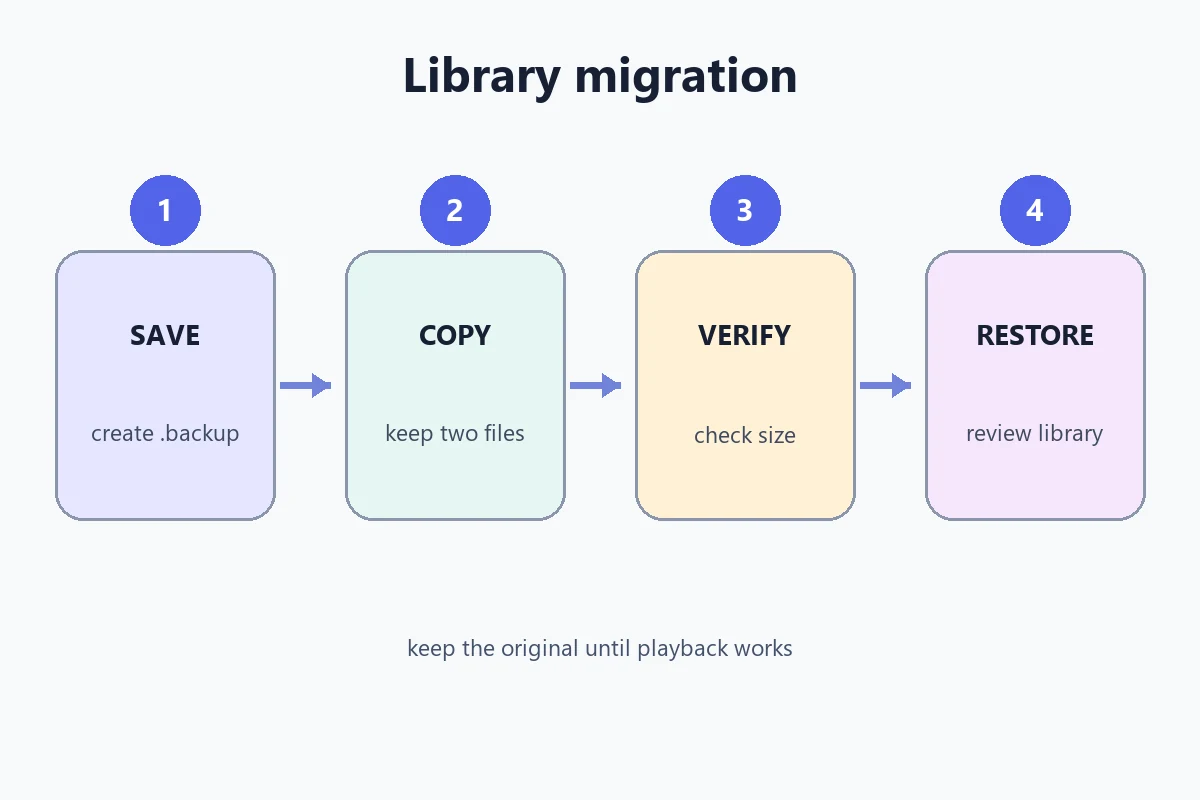
The important order is save, copy, verify, then restore. Do not create a backup and immediately uninstall the old app. First open the file from a file manager, confirm that it has a sensible name and non-zero size, and keep another copy outside the device that may be wiped. The restore screen should be treated as an import into an existing app, not as a magic cloud sync.
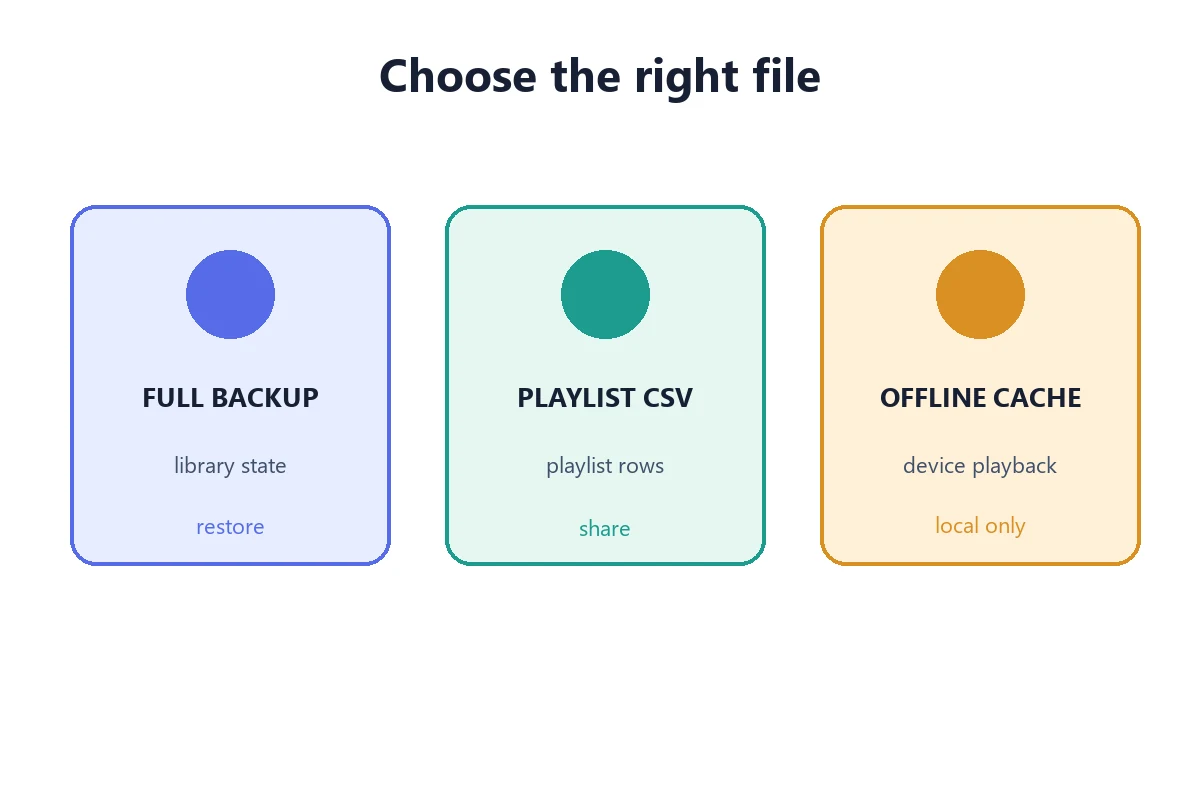
This guide covers the complete migration task. The playlist-export guide covers a CSV list, while the offline-mode guide covers cached audio. Those files solve different problems and cannot replace a full Metrolist backup.
The safe rule
Keep the original device and one untouched .backup copy until the destination library opens, playlists load, and a few representative tracks play.
What a Metrolist backup contains and what it cannot restore
The project's backup documentation describes a local library backup rather than a downloaded-audio archive. It can include library records such as liked songs, albums, artists, playlists, listening history, and account-related state. The exact set can change with the app release, so read the confirmation screen and the release notes for the build you are using.
A .backup file is not the same as an Android system backup. It does not guarantee that every permission, notification choice, cache entry, downloaded stream, or device-specific setting will be recreated. It also does not make an unavailable song available in another region. Treat it as structured app data that needs a compatible importer.
The distinction matters when you choose a file. A CSV is easy to inspect and share, but it is only a playlist snapshot. Offline audio is cached playback data. A full backup is private app state. Keep these files in separate folders and label them with the device and date.
| Data or file | What it is for | Restored by a full backup? |
|---|---|---|
| .backup file | Local library and supported settings snapshot | Yes, when the importer accepts it |
| CSV playlist export | Portable rows for saving or sharing one playlist | No; use the CSV import path |
| Offline song cache | Playback data stored for offline listening | No guarantee; cache is device and release dependent |
| Account credentials | Sign-in or account state used by the app | May be included; verify and sign in again if asked |
| Android permissions | OS permission choices and install settings | No; review them on the destination device |
How to create a Metrolist backup before changing devices
Create the backup while the old installation still opens normally. Let the library finish loading first, because a half-synced list can produce a perfectly valid file that simply reflects incomplete local data. If you use more than one account, note which account is active before saving.
Menu labels can move between releases. Look for Settings, then a Save and restore, Backup and restore, or similarly named entry. The official project documentation and the current app build are the authority for the exact wording; avoid guides that ask you to copy private database folders manually unless the project specifically documents that method.
After the export finishes, use Android's share sheet or a file manager to place the file in a folder you can find later. A cloud drive, computer, or encrypted storage location is safer than leaving the only copy in Downloads on the phone you plan to reset.
- Finish syncing. Open the library and important playlists, wait for visible rows to load, and confirm the correct account.
- Open the backup menu. Go to Settings and choose Save and restore or the equivalent label in your release.
- Create the file. Tap Save or Create backup, read the confirmation, and wait until the file operation completes.
- Choose a safe destination. Use a file manager, computer, or trusted drive instead of keeping the only copy on the old phone.
- Check the file. Confirm the .backup extension, a non-zero size, the date, and a name that identifies the source device.
- Keep two copies. Do not edit the original. Make a second copy for testing and keep the original until migration is complete.
Move the backup file to a new Android or desktop install
Transfer the file as a normal document. A USB cable, a computer, a private cloud drive, or a local share can work; the important part is that the destination receives the complete file with its extension unchanged. Avoid messaging apps that silently compress, rename, or remove unknown file types.
For a phone-to-phone move, copy from the old phone to a computer or trusted drive first, then download or copy to the new phone. Do not rely on an account sync alone if your goal is to preserve local history or app settings. A sync may restore remote playlists while leaving local-only state behind.
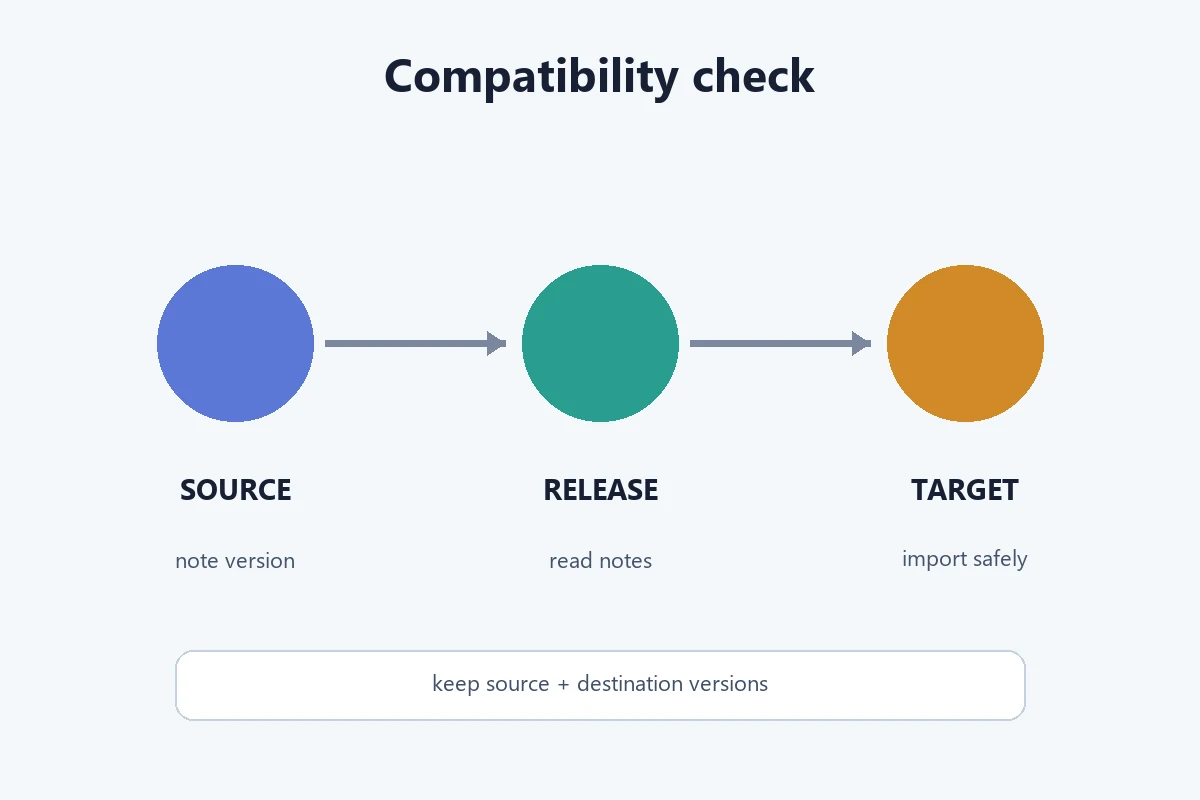
Metrolist 14.0.0 is a cross-platform release built around Metrolist-KMP and its release notes mention compatible foreign-app backup imports on Android and desktop. That does not mean every old file is interchangeable. Match the file type, the target platform, and the release notes before importing.
- Prepare the destination. Install the official build, open it once, and check the active account and available storage.
- Copy without renaming. Place the .backup file in a readable folder such as Downloads or a dedicated migration folder.
- Check the transfer. Compare the file size and extension with the original before opening the restore screen.
- Keep the source safe. Do not delete the old app or source copy until the destination has passed the verification checklist.
- Use the documented importer. Choose the in-app restore or import action; do not grant unrelated file or accessibility permissions to a mirror site.
Restore a Metrolist backup without losing the wrong library
Restoring is an import into the current installation. If the destination already contains new playlists or local changes, read the warning carefully and decide whether to export those lists first. When the app offers a merge or replace choice, do not guess. A replace action can remove destination state even when the backup itself is valid.
Use the untouched source file for the first attempt. If the file picker shows multiple copies, select the one whose date and size match your notes. Give the app time to process a large library, and keep the screen awake if the build does not show progress. Closing the app during an import can leave an incomplete result without damaging the original backup.
When the restore reports success, verify rather than assuming. Check the account, playlist count, liked songs, a few history entries, settings that matter to you, and one normal playback path. Then make a fresh backup from the destination so the new device has its own recovery point.
- Export any new destination data. Save a CSV or note important lists created on the new device before replacing or merging state.
- Open Restore or Import. Use the documented Settings entry and select the untouched .backup copy.
- Read the warning. Confirm whether the action merges, replaces, or adds data before continuing.
- Wait for completion. Keep the app open until the importer reports completion and the library reloads.
- Verify and re-back up. Check representative data, then create a new destination backup and store it separately.
Fix restore errors, missing files, and database version conflicts
Most restore failures are diagnosable if you separate the file stage from the compatibility stage. First confirm that the file exists, is not zero bytes, and was copied without a changed extension. Then confirm that the destination app is an official, compatible build. Do not download a random “converter” or modified APK to force an import.
The official issue tracker records a database version incompatible error when a backup created before v13.5.0 was restored after updating to v13.5.0. That report is evidence of a historical migration boundary, not a promise that every old file will fail today. Preserve the old installation, read the release notes, and report the exact source and destination versions when asking the project for help.
The file does not appear.
Move it to Downloads or another readable folder, check the extension, and grant file access only to the MetroList app picker.
The file is empty.
Return to the old device, let the library finish loading, create a new backup, and compare its size before transferring it.
Database version is incompatible.
Record both versions, keep the original file, check the official release notes, and try a supported upgrade path instead of editing the backup.
Restore stops part way through.
Restart the destination app, check storage, and retry with the untouched copy. Do not overwrite the only backup with a failed export.
Playlists are present but songs differ.
The backup preserves library records, not a universal audio catalog. Check account, region, title variants, and availability.
The app asks for login again.
A restore may not carry every credential or Android permission. Sign in through the normal app flow and review account security.
Current release context, privacy, and limitations
On November 16, 2026, the official Metrolist releases page showed 14.0.0 as the current public release. Its notes describe the first public multiplatform Metrolist-KMP release and compatible imports from several other music apps on Android and desktop. Release facts can change, so open the official page again when you perform a later migration.
The same release notes say that iOS does not yet support foreign-app backup import. Do not assume that an Android .backup file can be opened on iPhone or iPad. Use the project's stated platform support, and keep a CSV playlist export when you need a portable fallback that you can inspect.
Backup files can contain personal library history, account-related state, and listening choices. Store them like private documents, avoid public links, and delete temporary copies from shared computers. This site provides guidance and links to first-party release information; it does not host a backup service or inspect your file.
| Check | What the current evidence supports |
|---|---|
| Release context | Official releases page fetched November 16, 2026: 14.0.0 |
| Android and desktop | Compatible foreign-app backup imports are listed for these platforms |
| iOS | Foreign-app backup import is listed as unsupported |
| Old 13.x files | Compatibility must be checked against the source and destination release |
| Privacy | Treat .backup files as private app data and keep them out of public links |
Metrolist backup and restore FAQ
Product references
- Metrolist Backup & Restore documentation — Describes the local backup scope and supported library data.
- Official backup compatibility issue — Records the database version incompatible report and reproduction path.
- Official Metrolist releases — Check current platform support and release-specific import notes before migrating.
Choose the next guide based on your migration step.