Metrolist Playlist Export: Save a CSV Backup or Share It
Save an existing playlist as a CSV file, check that the export is usable, and understand what it can and cannot restore.

In this guide
What Metrolist playlist export creates
Metrolist playlist export saves one existing list as a CSV you can store or share. The official guide documents a playlist-menu action that hands the file to Android's share sheet. It preserves track-list data, not audio.
CSV export was added in v13.3.0. If the action is missing, check your installed build and open the playlist menu, not a track menu. Consult official release notes before changing versions.
Keep the distinction clear
A CSV is a portable list of music references. It does not download audio, archive all Android app data, or preserve every setting. Keep the original playlist until you have checked the export.
How to export a Metrolist playlist to CSV
To start a Metrolist playlist export, open a populated list and confirm its title and a few tracks. A list still syncing may produce a file that looks incomplete.
Use the playlist context menu, not a track download menu. The documented menu is available in the open playlist or by long-pressing its row. Export to CSV opens Android's share sheet.
- Open the playlist. Select the intended list and confirm its title and tracks.
- Open its context menu. Use the top-bar menu or long-press the playlist row, not a song menu.
- Choose Export to CSV. Metrolist creates the file and opens Android's share sheet.
- Choose a destination. Select a file manager or provider, then verify the file arrived.
Where the CSV goes and how to verify it
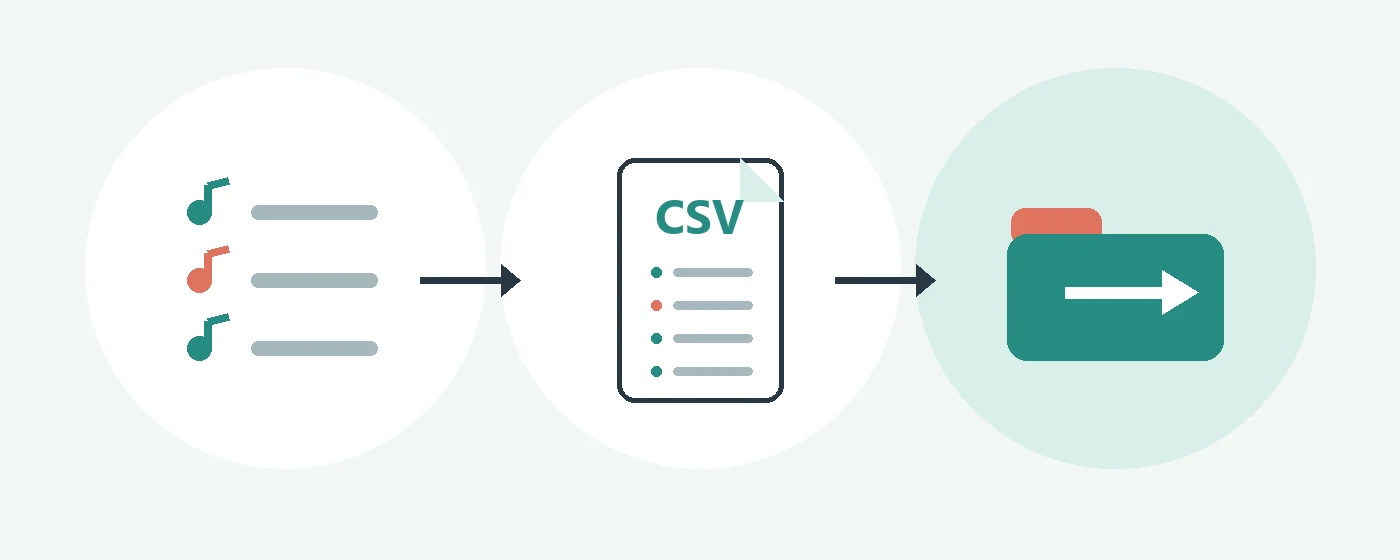
After a Metrolist playlist export, the destination is chosen in Android's share sheet. A file manager may ask for a folder, while a drive or messaging app uses its own location. There is no single export folder for every destination.
Keep the original file untouched. If Android offers a rename step, use the playlist title and date; otherwise retain the generated name until you verify the export.
Confirm the destination contains a non-empty CSV with track rows. Inspect a copy, not the original, and check titles with commas, quotation marks, or non-Latin characters before saving from a spreadsheet.
- Confirm the path. Note the folder, drive, or conversation you selected.
- Keep a dated original. Do not replace an older backup until the new rows look right.
- Test a copy first. Use a duplicate for imports or spreadsheet edits.
- Protect shared links. Check access settings before sharing a personal playlist.
What a CSV playlist backup includes and excludes
A Metrolist playlist export is a portable playlist record, not a phone backup. It cannot reinstall MetroList, restore credentials or settings, or contain playable audio. The official guide describes it as a file for saving or sharing a list.
A synced playlist still has its account or remote source. The CSV is a separate snapshot; it does not keep future edits synchronized. Keep the original list until any later import has been checked.
| Item | What it does | Is it the CSV export? |
|---|---|---|
| Playlist CSV | Stores playlist rows for saving, sharing, or a supported CSV import. | Yes |
| Offline cache | Keeps eligible audio available for playback inside the app. | No |
| Synced playlist | Connects playlist changes with an account or remote service. | No; it has a separate sync path |
| Android app data | May contain settings or local state managed by Android and the app. | No; CSV is not a full app-data archive |

How to import a CSV playlist again
A Metrolist playlist export can be tested through the documented CSV import flow. Use a copy before relying on a migration: imported track references do not restore listening history, artwork cache, account links, or every remote setting.
Compare the imported count, titles, and artists with the CSV. Matches can fail when a track is unavailable in your region or has a different title or identifier. Keep the source list until representative tracks play and the count is reasonable.
- Copy the CSV. Keep one untouched original.
- Use the CSV import action. Choose the copy you want to test.
- Review the result. Compare the title, row count, artists, and unusual versions.
- Resolve gaps deliberately. Check the intended recording before adding a match manually.
Troubleshoot a missing export option or empty CSV
If a Metrolist playlist export fails, isolate the stage: the option is missing, the share destination rejected the file, or the CSV is empty or unreadable. Change one thing at a time and keep the source list in place while you test.
Export to CSV is missing.
Open the playlist menu, not a track menu. Try the top bar and long-press route; export was added in v13.3.0.
No file appears after sharing.
Check the selected folder or destination app's recent files. Export again to a file manager and confirm a CSV exists.
The CSV is empty.
Confirm the source playlist finished loading, then test a small populated list.
Spreadsheet text looks wrong.
Inspect an untouched copy in a text editor. Do not save format experiments over the original.
Imported tracks are missing.
Compare titles, artists, regions, and alternate versions; a CSV cannot add unavailable catalog tracks.
Prepare a playlist backup before reinstalling or changing devices
Before changing phones or reinstalling, make a Metrolist playlist export for each important list and open each CSV from its saved location. Confirm synced lists still exist in the right account; a CSV does not restore app state.
Record the playlist name, export date, and file location. Keep a second copy for valuable lists, then test one import on the new installation before rebuilding the rest.
- Open each CSV before uninstalling.
- Keep the source playlist until imports are checked.
- Store a copy away from the phone being reset.
Frequently asked questions
Product references
- Metrolist playlist documentation — Documents playlist CSV export, the context-menu path, Android share sheet, and CSV import.
- Metrolist official changelog — Records the playlist export option in v13.3.0 and a separate backup-restore fix in v13.2.0.
- Metrolist official releases — First-party release tags and package metadata when you need to verify an installed build.
Continue with the guide that matches your next step.